Is Your Smartphone Really Protected?
You don't need to become a cybersecurity expert. You just need to protect your phone, recognize common scams, and develop a few simple habits.
Through November 30th only, purchase the Smartphone Safety Made Simple program and save $10.

It's hard to know whether you're doing enough to protect your computer.
Every day, your smartphone helps you communicate, shop, bank, pay bills, take photos, manage passwords, and stay connected with family and friends. It probably contains more personal information than any other device you own.
At the same time, you're hearing about fake apps, scam text messages, dangerous websites, QR codes, public Wi-Fi, identity theft, and dozens of other online threats. It's difficult to know which warnings really matter—and how to protect yourself.
So what do you really need to do? And how do you know you're focusing on the things that matter most?
You're not always sure which apps you can trust—or which permissions are safe to allow.
You receive a text message that doesn't seem quite right—but you're not sure whether it's legitimate or a scam.
You use your phone for banking, shopping, or paying bills, but you're not sure whether you're doing it as safely as you could.
You've heard about QR code scams, fake browser warnings, and dangerous links—but you're not always sure how to spot them.
You're not sure whether your photos, contacts, and other important information are being backed up properly.
You wonder just how secure your smartphone really is.
Smartphone safety doesn't have to be complicated.
You don't need to understand technical details or keep up with every new scam. You just need to put the right protections in place, learn how to recognize common warning signs, and develop a few simple habits that help keep you safe.
That's exactly what you'll learn in Smartphone Safety Made Simple.
Introducing "Smartphone Safety Made Simple," Practical Guidance for Using Your Smartphone More Safely Every Day.

Step-by-Step Guidance

No Tech Expertise Required

Put Protections in Place as You Learn

We'll Do This Together
Finally, a Simple Way
to Feel Confident with Your PC
Step-by-Step
Guidance
Practical Skills
You’ll Use Daily
Learn at
Your Own Pace
Support
You Can Trust
ABOUT THE BOOK AND COURSE
Demystifying PCs:
You just need a simple & direct guide.
Do you frequently find working on your PC frustrating? Maybe you don't know how to do more than the basics. Maybe you aren't sure what to do when you encounter a problem. You aren't stupid, but boy can your PC make you feel that way sometimes!
The fact is, PCs have gotten more and more sophisticated over the years. That's both good and bad. It's great if you know how to use all those bells and whistles. But it can be like groping blindly in a maze if you don't.
Worse, you're usually left to figure things out on your own. Your PC came with only basic setup instructions. Your friends are as lost as you are. And your son? When he shows you how to do something, he speeds through it, and doesn't explain things step by step.
And books? They all seem to be written for people who want to become IT techs. And you definitely do NOT want to be one!
You just want to learn what you need to know to use your PC effectively and confidently. Without all the jargon, and without a bunch of details that you'll never use.
Why doesn't someone write a concise, easy-to-follow guide for everyday users?
I heard you. That's why I've created PCs Made Simple.
Could Smartphone Safety Made Simple be right for you?
Do any of these sound like you?

I'm Not Sure My Phone Is Protected
Have I turned on all my smartphone's important security features?

I'm Never Sure What's Real
Is that text message, QR code, warning, or website legitimate—or a scam?
I Know I Should Be Doing More
Updates, passwords, backups, settings... where should I even begin?
Could PCs Made Simple be right for you?
Well, do any of these scenarios sound familiar?

My computer is so slow! It's hard to get my work done! Is it my W-Fi? Or what?

When something goes wrong, I don't have a clue what's wrong or how to fix it.

I'd like to adjust some of the standard settings, but I'm afraid I'll break something.

My co-worker got a virus that trashed her PC. How can I avoid that?
I know that I should back up my files, but I'm not sure how to set that up.

Computers are expensive. What can I do to keep mine running smoothly for a long time?
Through November 30th only, purchase the Smartphone Safety Made Simple program and save $10.
More than just a course -
A Complete Learning System:
Step-by-Step Text Lessons
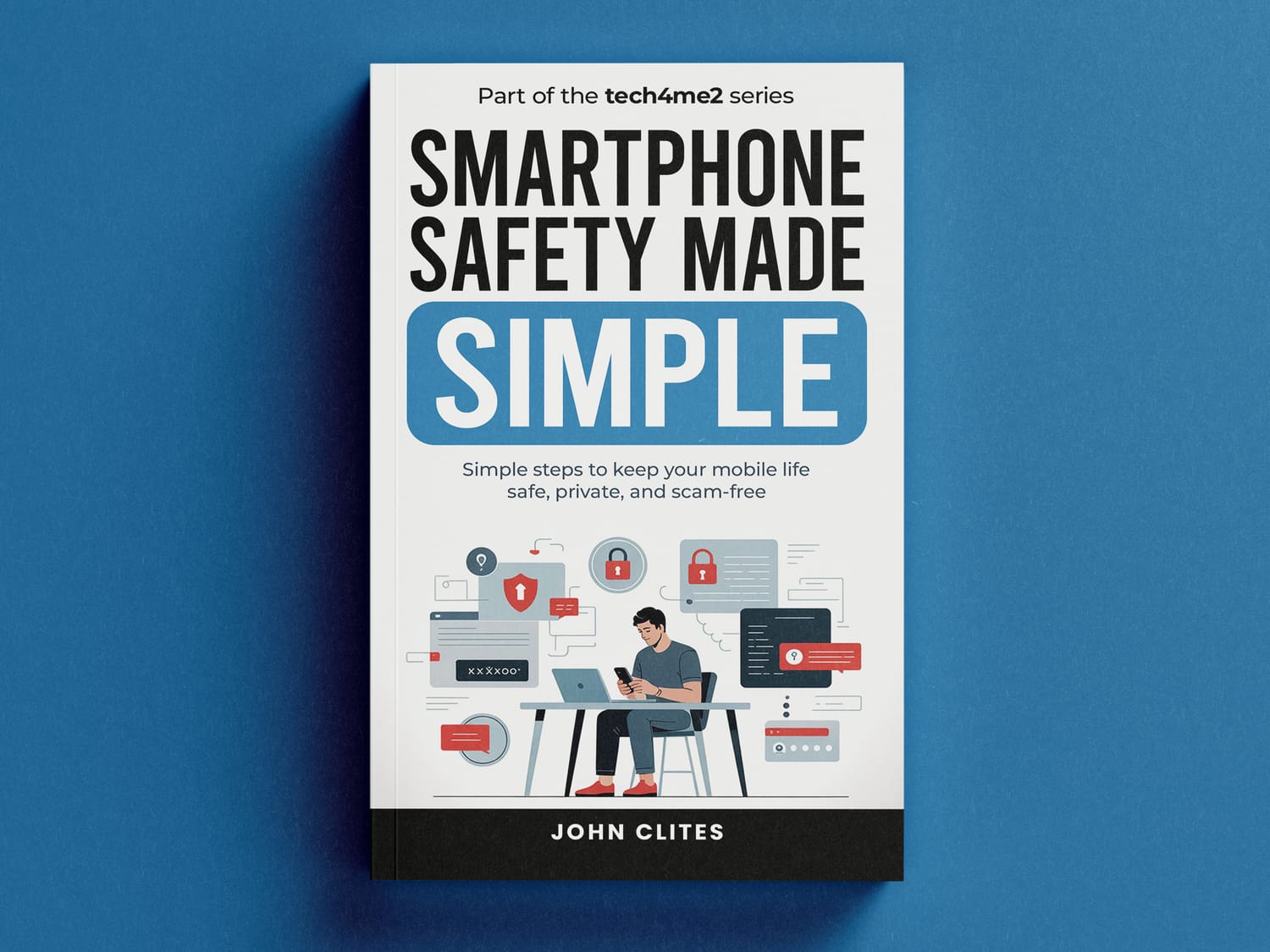
Clear, practical lessons show you what you need to know—without burying you in technical detail.
Organized into manageable safety topics
Plain-English explanations
Focused on practical protection, not technical theory
Know what to do—and why you're doing it
Watch-Me-Do-It Videos
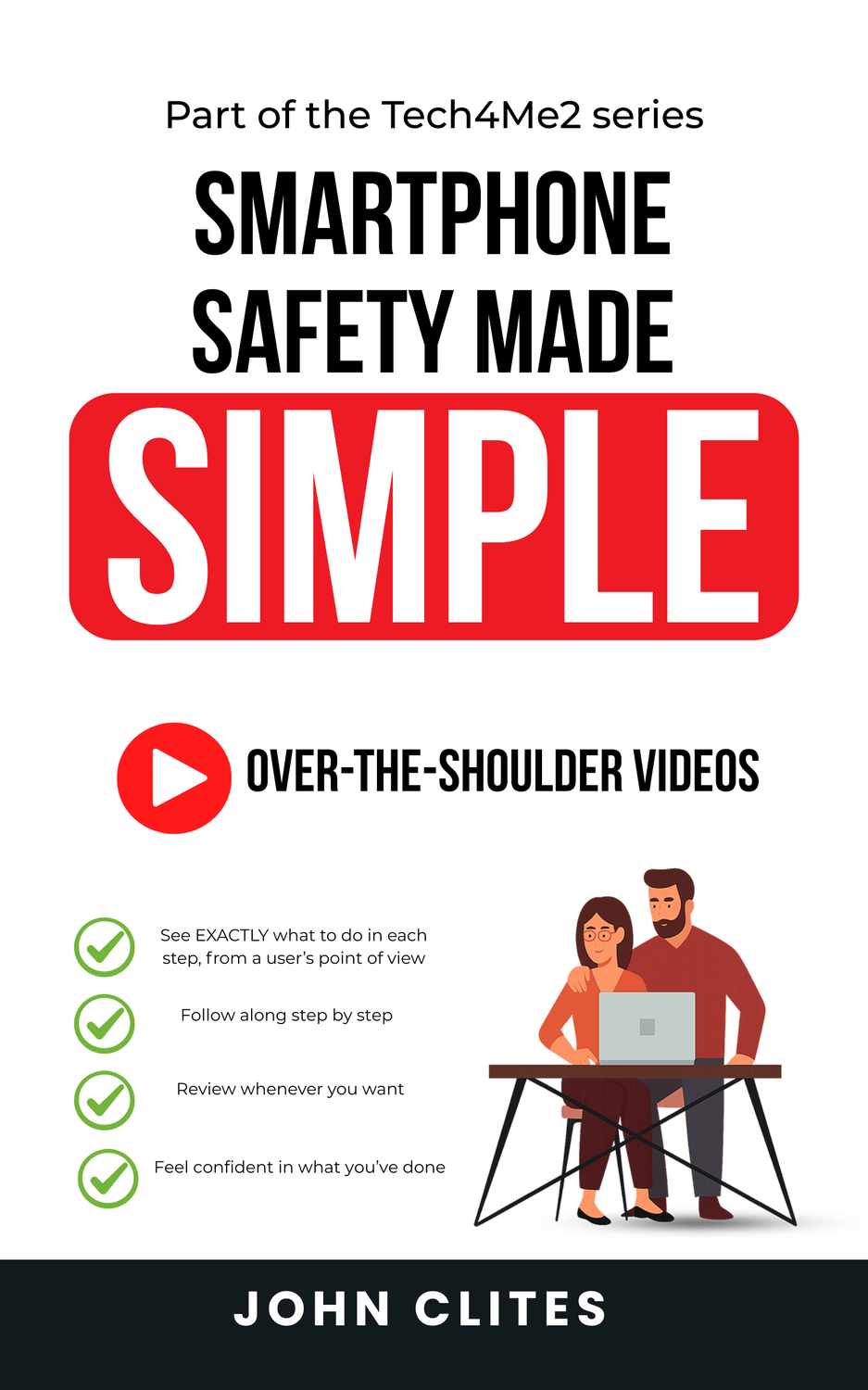
When it's easier to show than explain, you can follow along on screen.
See exactly where to find important settings
Follow demonstrations at your own pace
Pause or replay whenever you need to
Includes demonstrations of settings, updates, apps, passwords, backups, and more
Companion Workbook
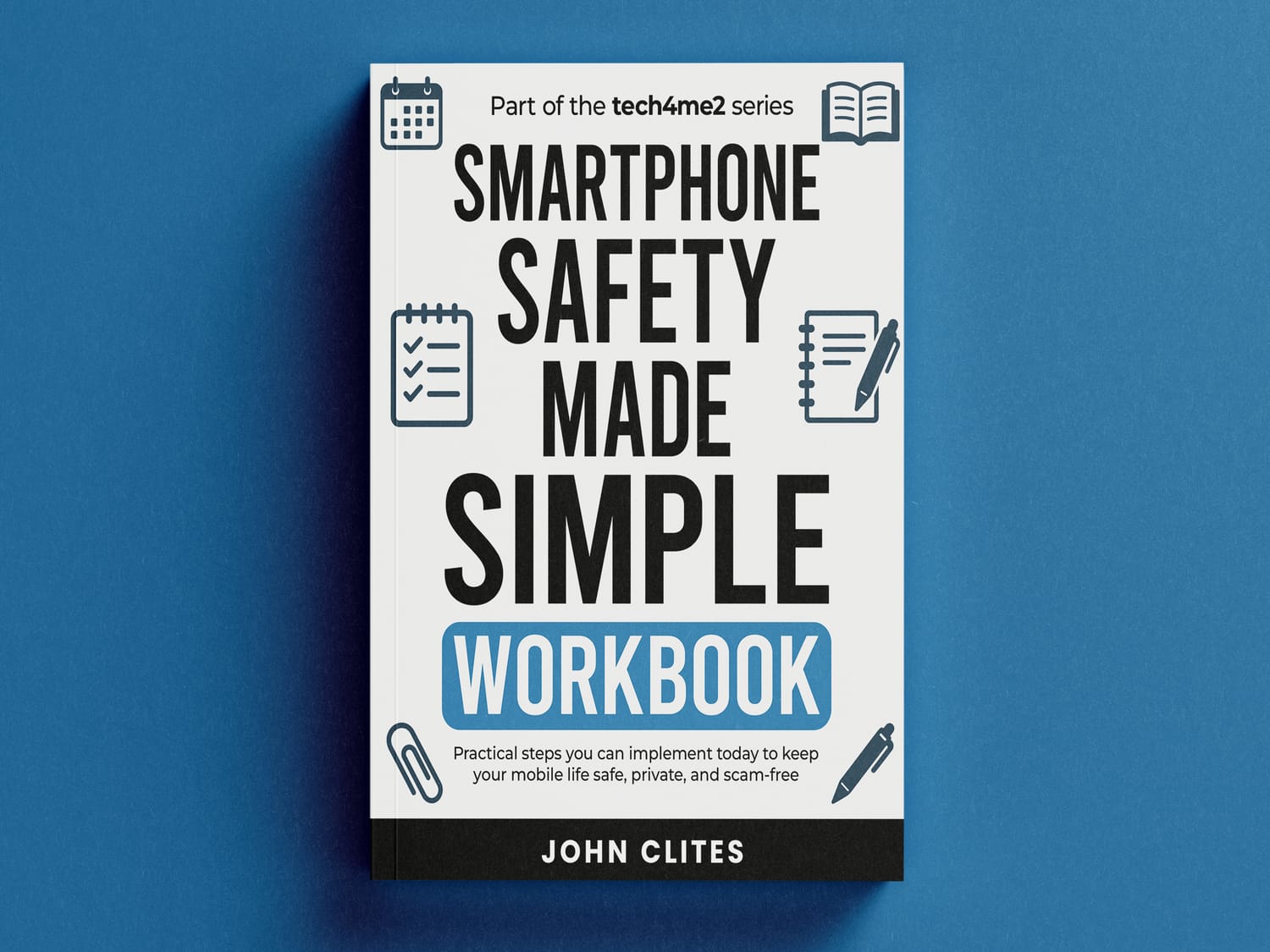
This isn't homework. It's where you put what you're learning into practice on your own smartphone.
Guides you through important security decisions
Helps you configure your PC as you progress
Records important settings and information
Finish the course with a smartphone that's safer, more secure, and set up for your needs.
Monthly Safety Checklist
Your quick-reference guide for making sure the protections you've put in place continue working.
Review the essential smartphone safety basics.
Check that important protections remain enabled.
Use it as a quick monthly security checkup.
Keep your smartphone safer long after the course ends
Through November 30th only, purchase the Smartphone Safety Made Simple program and save $10.
Your Roadmap to a Great
Working Relationship with Your PC.
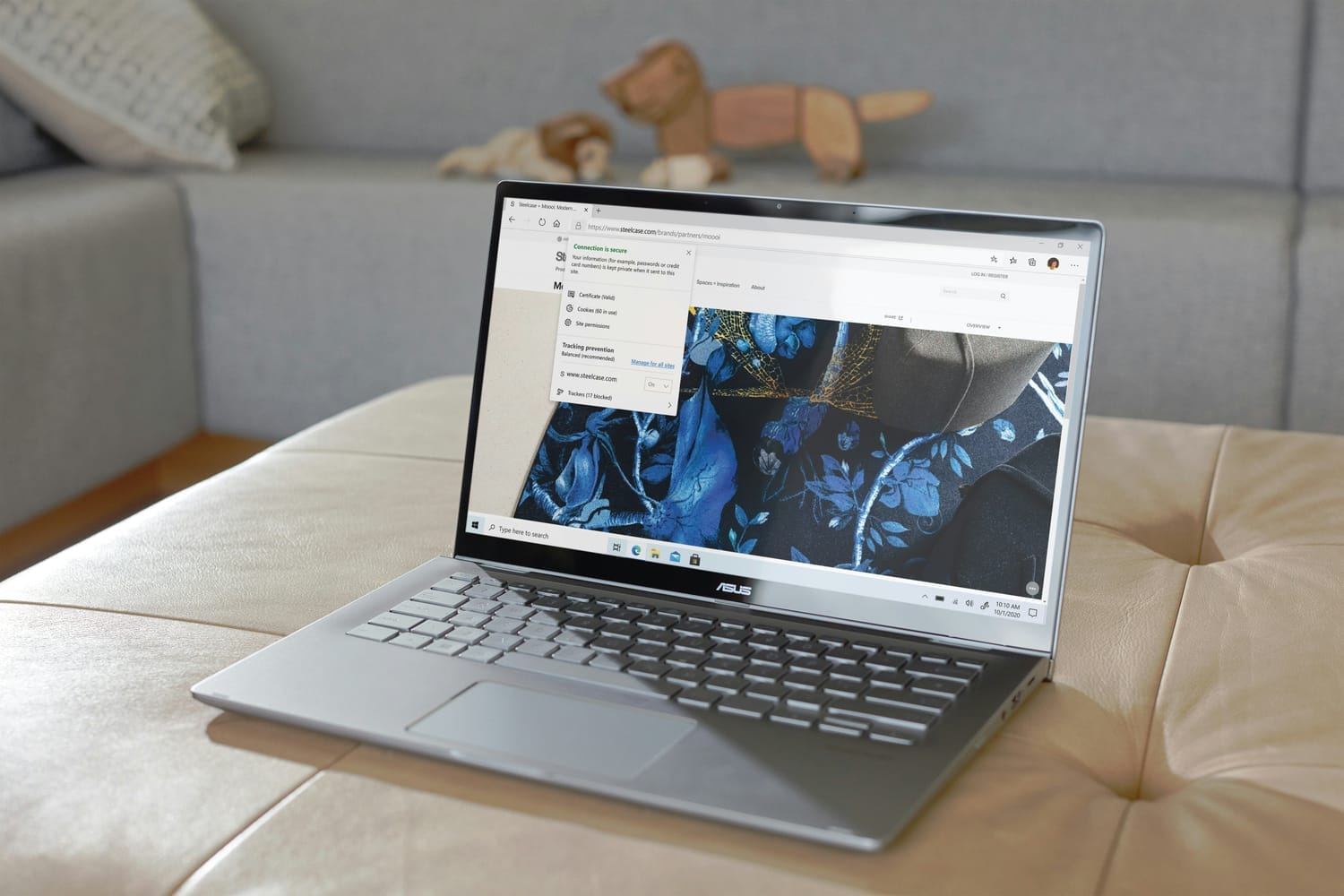
In PCs Made Easy, you'll learn how to address all of these issues, and much more.
Check out the full contents below.
What you'll learn
By the end of this program, you'll be able to:

✓ Keep your smartphone and apps secure and up to date
Know which updates should happen automatically, what to check yourself, and how to recognize fake update warnings.
✓ Protect your phone with the security features it already includes
Use screen locks, biometrics, Find My Device, Play Protect, and other built-in protections with confidence.
✓ Protect your accounts with stronger passwords and two-factor authentication
Use a password manager, enable two-factor authentication, and understand how these tools work together.
✓ Recognize smartphone scams before you tap
Spot the warning signs in text messages, messaging apps, websites, QR codes, pop-ups, fake downloads, and other common traps.
✓ Protect your photos, contacts, and other important information
Set up reliable backups so your memories and important information aren't lost if something happens to your phone.
✓ Use your smartphone more safely for banking, shopping, travel, and everyday life
Develop practical habits that reduce your risk without making technology complicated.
And you won't just know what to do. You'll have the confidence of knowing your smartphone is set up to protect you.
Special Bonuses Included at No Extra Cost
To make PCs Made Simple even more practical, I’ve added exclusive extras you won’t find in other beginner PC guides. These handy resources give you quick answers and step-by-step help long after you finish the book or course.
Bonus #1 – Glossary of Common Terms
Tired of confusing computer lingo? The glossary explains common tech terms in plain, everyday English so you’ll never feel lost or embarrassed.
Clear definitions you’ll actually understand
Great quick reference to keep by your side
Build your confidence as you learn
Bonus #2 – New PC Shopping Considerations
Planning to buy a new computer? This checklist walks you through what really matters, without upsells or overwhelm.
Learn what features are important (and which to ignore)
Avoid wasting money on things you don’t need
Buy a PC that fits your needs perfectly
Bonus #3 – Home Wi-Fi Setup Checklist
Wi-Fi giving you trouble? This step-by-step guide helps you set up or troubleshoot your connection with ease.
Clear, no-jargon steps for setting up a secure Wi-Fi network
Reduce frustration with dropped connections
Gain peace of mind knowing your home network is safe
Bonus #4 – PC Migration Checklist
Upgrading to a new PC? Don’t risk losing your important files and settings. This checklist makes the transition simple.
Know exactly what to transfer before you switch
Keep your data safe and organized
Enjoy a smooth, stress-free move to your new computer
Finally, a PC Guide That Doesn’t Talk Down to You

Most computer guides are written by tech experts for other tech experts. They’re packed with jargon, assume you already know the basics, and leave you more confused than when you started.
PCs Made Simple is different.
Written in plain, everyday language.
Focuses only on what you actually need to know.
Builds confidence step by step, without overwhelm.
Created by someone who understands your frustrations—and how to solve them.
This isn’t about turning you into a “computer whiz.” It’s about giving you the knowledge and confidence to use your PC comfortably, every day.
Learn the Way That Works for You

Everyone learns differently. That’s why PCs Made Simple is available in three flexible formats—so you can choose the one that suits you best:
The Book – A clear, step-by-step guide you can keep by your side and refer back to anytime.
The Video Course – Short, easy-to-follow lessons you can watch at your own pace, with real demonstrations.
The Bundle – Get the best of both worlds. Read the book for reference, and watch the videos for hands-on guidance.
No matter which option you choose, you’ll have practical, easy-to-use instructions that help you feel more confident with your computer—without the jargon.
Here is what you'll learn inside:

Here is what you'll learn:
Scope
1
Foreword
3
Introduction to PCs
Just what is a PC?
What makes PC "personal"?
Hardware, Firmware, and Software
Essential Computer Components
Monitors, Mice, Touchpads, and Touch Screens
5
Choosing the Right Computer for Your Needs
Desktop vs. Laptop
How Important Is the Brand Name?
Matching the PC to Your Needs
Other Items
Should You Buy the Extended Warranty?
Migrating from Your Old PC
What to Do with Your Old PC
11
Setting Up Your PC
Selecting a Space
Unboxing and Assembling
Desktop Setup
Laptop Setup
Cables and Wiring
First Boot: What to Expect
18
Connecting Peripherals and Drivers
Printers and All-in-One Devices
External Data Devices
Cameras and Sound
Understanding Drivers
23
Windows Basics
Installing the Windows Operating System
Logging in
The Windows Desktop
Navigating File Explorer
Install Key Software Packages
Getting Online
Wired (via Ethernet Cable)
Wireless (Wi-Fi)
Troubleshooting Common Network Issues
Considerations When Traveling
The Chrome Browser
What Is a Browser?
Navigation Basics
What Are Tabs?
Bookmarks
Extensions: Handy Add-Ons
Understanding Cookies and Cache
Incognito Mode: Private Browsing
Chrome's Security Features
Personalizing Your PC Settings & Setting Up Users
Essential Settings to Review and Adjust
Setting Up Additional Users
Using Gmail. Google Calendar, and Google Meet
Getting Started with Gmail
Using Google Calendar to Stay Organized
Hosting Video Call with Google Meet
Maintaining Your PC's Health
Keeping Your PC's Exterior Clean
Digital Cleaning and Backups
Backups and Data Safety
Power and Charging Tips
Useful PC Tips, Shortcuts, and Troubleshooting
Screenshots and Sticky Notes
A Little Help from AI
Function Keys
Keyboard Shortcuts You'll Actually Use
What to Do When Things Go Wrong
Afterword
Glossary of Terms
New PC Shopping Considerations
Home Wi-Fi Setup Checklist
Migration Checklist
28
35
41
50
59
66
74
84
87
91
93
96
ABOUT THE AUTHOR

Hi, I'm John Clites, and I'd like to help you build a healthier relationship with your PC.
And who am I? Well, I'm definitely not a tech geek. In fact, I hardly studied computers at all in school.
But I do have decades of actual in-front-of-a-screen experience. The first PC I worked on was a TRS-80, which was created by Tandy, the Radio Shack people. (Remember them?)
Then at Deloitte & Touche I worked on a computer that wasn't even called "portable." It was called a "luggable," and it was definitely no fun trying to stow that beast in the plane's overhead compartment!
Since then I've worked on a long series of PCs, including Dells, HPs, Toshibas, a Compaq, a Lenovo, and a Samsung - and no doubt a few I can't recall.
I believe I've faced pretty much every annoyance, issue, and problem that a user could reasonably expect to encounter in this life.
And during all those years, I've had to deal with everything pretty much on my own, so I've gotten pretty savvy.
I know what you're facing, because I've been there. And I'm here to help.
WHAT OTHERS SAYS ABOUT US
Words from Our Satisfied Customers

“The best online marketing tool mentioned in this e-book has made my social media campaigns so much more effective. It's like I've finally cracked the code to reaching my target audience and engaging them like never before. Thank you for this life-changing insight!"

Jessica
Social Media Manager
“After implementing the strategies from this e-book, my online business skyrocketed! The best online marketing tool revealed inside was a game-changer, and I can't believe the results. Thank you for this invaluable resource!"

Sarah
Online Entrepreneur
“Im not tech-savvy, but this e-book made it so easy to understand and implement the best online marketing tool. It's like a step-by-step roadmap to success. My online store's sales have gone up, and I'm amazed at how straightforward it was to achieve!"

Emily
E-commerce Store Owner
“I was skeptical at first, but the results speak for themselves! The strategies presented in this e-book, along with the best online marketing tool, have taken my blog's readership to new heights. I'm blown away by how effective and easy-to-implement they are!"

Rachel
Blogger
"As a startup founder, I needed cost-effective yet powerful marketing solutions. This e-book delivered just that! The best online marketing tool shared inside has given my startup a remarkable boost, reaching a broader audience and driving steady growth."

Andrew
Startup Founder
"I've attended marketing workshops and read numerous books, but none compared to the insights I gained from this e-book. The best online marketing tool is a game-changer that every marketer should know about. It's completely transformed the way I approach my campaigns!”

Lisa
Marketing Professional
Take Control of Your PC Today
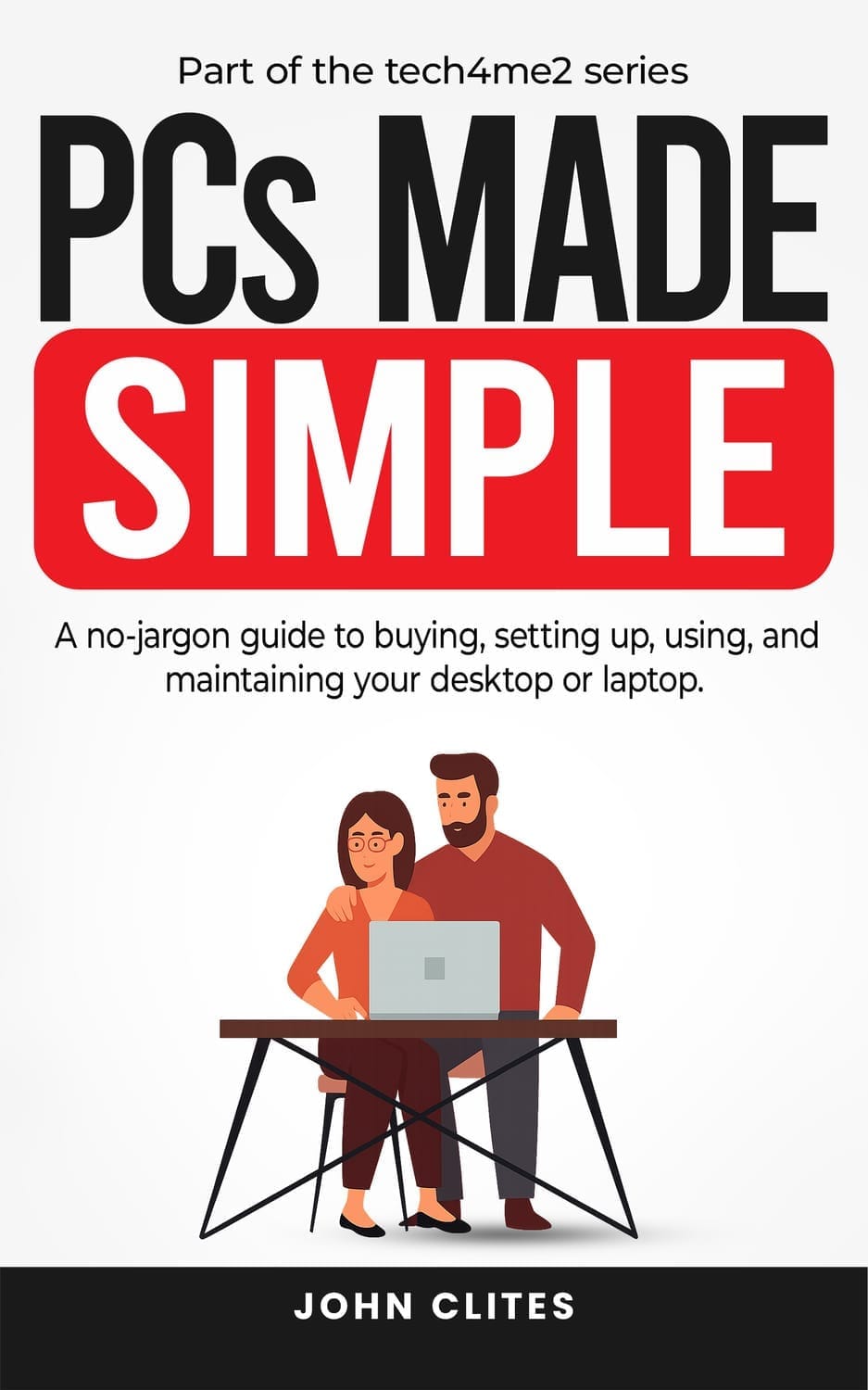
No more second-guessing every click. No more worrying about “breaking something.”
With PCs Made Simple, you can finally feel confident using your computer—whether it’s checking email, browsing safely, protecting your files, or enjoying your favorite online activities.
This isn’t about becoming a tech expert—it’s about giving you the practical skills to handle your PC on your own, with ease and confidence.
Important Note: PCs Made Simple covers Windows PCs and the Chrome browser (Edge is similar). It does not cover Macs, which use a different system.
About 70% of home computers fit this profile, so the contents should apply to your setup.
Frequently Asked Questions
Absolutely! The Smartphone Safety Made Simple program was designed with the average user in mind. Each module builds on the next in a logical, easy-to-follow sequence. And you aren't merely going to learn about Smartphone safety. You're going to put the protections in place as you go.
Yes, you have 14 days in which to review the program. During that time, you may request a refund - although I think you'll agree that the course is worth every penny and more!
Yes. You may find answers in the www.Tech4Me2.com blog. If you need further assistance, you can write to: support@tech4me2.com.
Frequently Asked Questions
Porttitor id porta pulvinar ut sagittis. Consequat imperdiet in consequat risus enim. Ante neque a donec laoreet a porttitor nibh imperdiet. In varius ullamcorper etiam arcu eu vel. Tristique nibh natoque amet pellentesque felis et amet. Sit ultrices fringilla semper pulvinar. In fermentum gravida arcu dui lectus.
Porttitor id porta pulvinar ut sagittis. Consequat imperdiet in consequat risus enim. Ante neque a donec laoreet a porttitor nibh imperdiet. In varius ullamcorper etiam arcu eu vel. Tristique nibh natoque amet pellentesque felis et amet. Sit ultrices fringilla semper pulvinar. In fermentum gravida arcu dui lectus.
Porttitor id porta pulvinar ut sagittis. Consequat imperdiet in consequat risus enim. Ante neque a donec laoreet a porttitor nibh imperdiet. In varius ullamcorper etiam arcu eu vel. Tristique nibh natoque amet pellentesque felis et amet. Sit ultrices fringilla semper pulvinar. In fermentum gravida arcu dui lectus.
Porttitor id porta pulvinar ut sagittis. Consequat imperdiet in consequat risus enim. Ante neque a donec laoreet a porttitor nibh imperdiet. In varius ullamcorper etiam arcu eu vel. Tristique nibh natoque amet pellentesque felis et amet. Sit ultrices fringilla semper pulvinar. In fermentum gravida arcu dui lectus.
Porttitor id porta pulvinar ut sagittis. Consequat imperdiet in consequat risus enim. Ante neque a donec laoreet a porttitor nibh imperdiet. In varius ullamcorper etiam arcu eu vel. Tristique nibh natoque amet pellentesque felis et amet. Sit ultrices fringilla semper pulvinar. In fermentum gravida arcu dui lectus.
Copyright © 2026 John Clites and JRC Online Publishing LLC. All Rights Reserved.